Setup guide
Set up in 10 minutes.
From download to your first match: everything you do on the PC and on the console, in order. You only do this once.
Before you start
- A Windows 10 or 11 PC
- A PS5 or Xbox Series X|S on the same network as the PC (a network cable makes the picture steadier)
- Keyboard and mouse on the PC
- Your KEY, emailed after purchase
1. Install the app
- 1In the app
Download the installer
Go to My Console › Downloads (the link is also in your purchase email) and download the Console no PC installer for Windows.
- 2In the app
If Windows warns you, click More info
The first time, Windows may show "Windows protected your PC". This happens with new apps that do not have a digital signature yet. Click More info, then Run anyway.
- 3In the app
Install and open
Installing needs no administrator password and creates shortcuts in the Start menu and on the desktop. After that the app updates itself.
2. Activate your KEY
- 4In the app
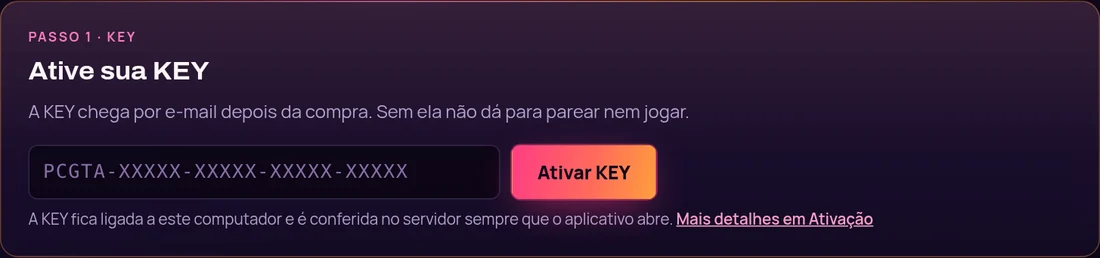
Paste the KEY and click Activate KEY
The KEY is tied to this computer and checked every time the app opens. New PC? Release the KEY in the Licence tab and activate it on the new one.
3. PlayStation 5
- 5On the console
Turn on Remote Play
On the PS5, open Settings › System › Remote Play and turn on Enable Remote Play.
- 6On the console
Let the PS5 wake over the network (optional)
In Settings › System › Power Saving › Features Available in Rest Mode, turn on Stay Connected to the Internet and Enable Turning On PS5 from Network, so the app finds it even in rest mode.
- 7In the app
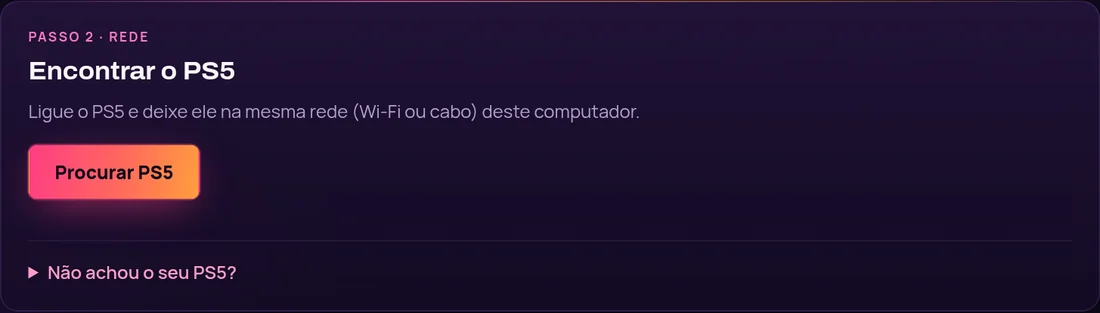
Pick PlayStation 5 and click Find PS5
The app finds the PS5 on the network by itself. If Windows shows a Firewall prompt, click Allow. Not found? Type the PS5's IP address (Settings › Network › View Connection Status).
- 8On the console
Get the pairing code
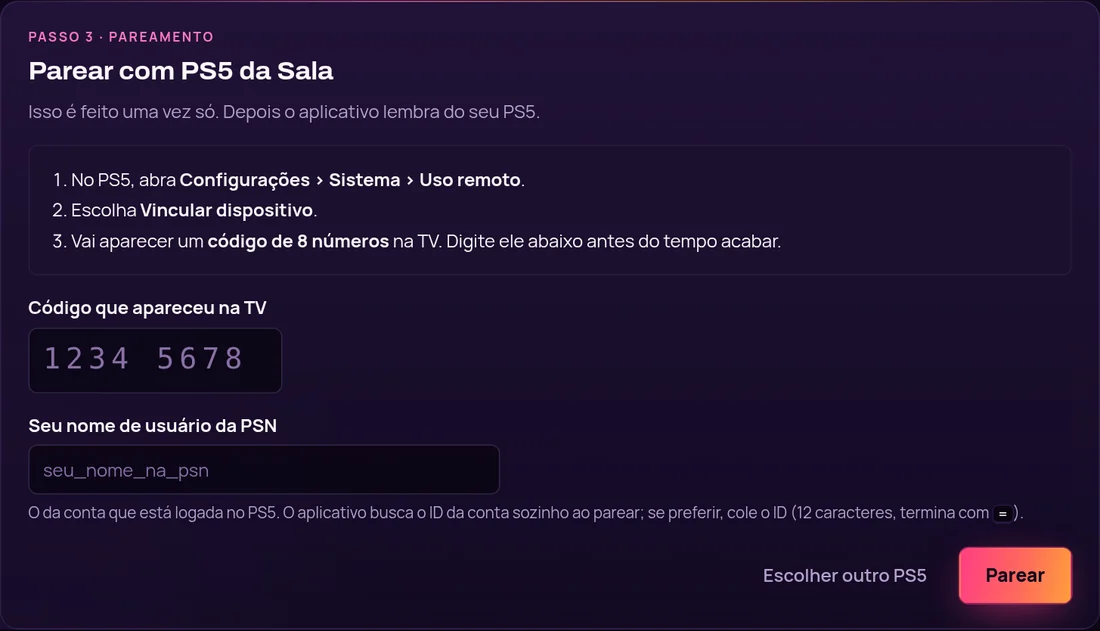
On the PS5, in Settings › System › Remote Play, choose Link Device. An 8-digit code shows on the TV.
- 9In the app
Type the code and your PSN name
Use the account signed in on the PS5: the app looks up the account ID by itself. Click Pair. You only do this once.
3. Xbox Series X|S
- 5On the console
Enable remote features
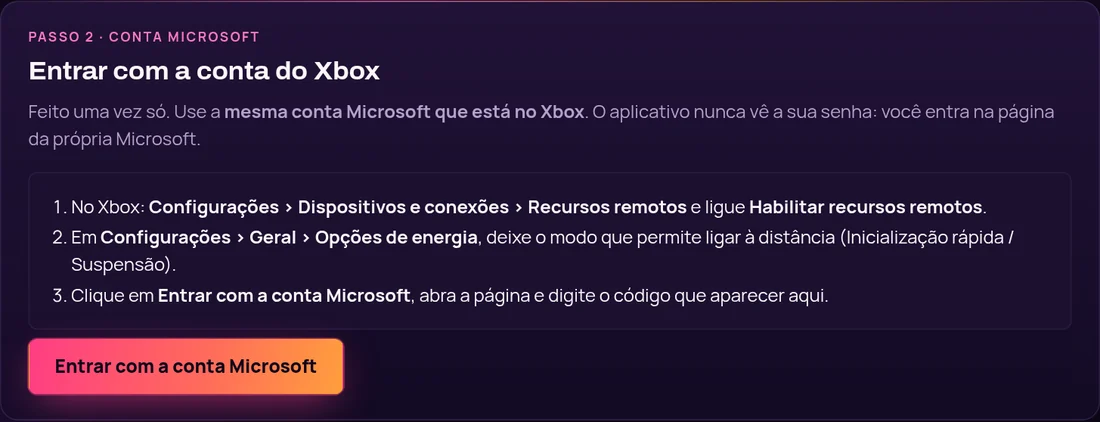
On the Xbox, open Settings › Devices & connections › Remote features and tick Enable remote features. There is also a Test remote play button there.
- 6On the console
Let the Xbox turn on remotely
In Settings › General › Power options, choose the mode that allows turning on remotely (Sleep / Instant-on).
- 7In the app
Sign in with your Microsoft account
Pick Xbox Series X/S and click Sign in with Microsoft. Open Microsoft's page and type the code the app shows. Use the same account as the Xbox; the app never sees your password.
- 8In the app
Click Find Xbox
The app finds the Xbox on the network. Not found? Type the Xbox's IP address (Settings › General › Network settings › Advanced settings).
4. Play
- 10In the app
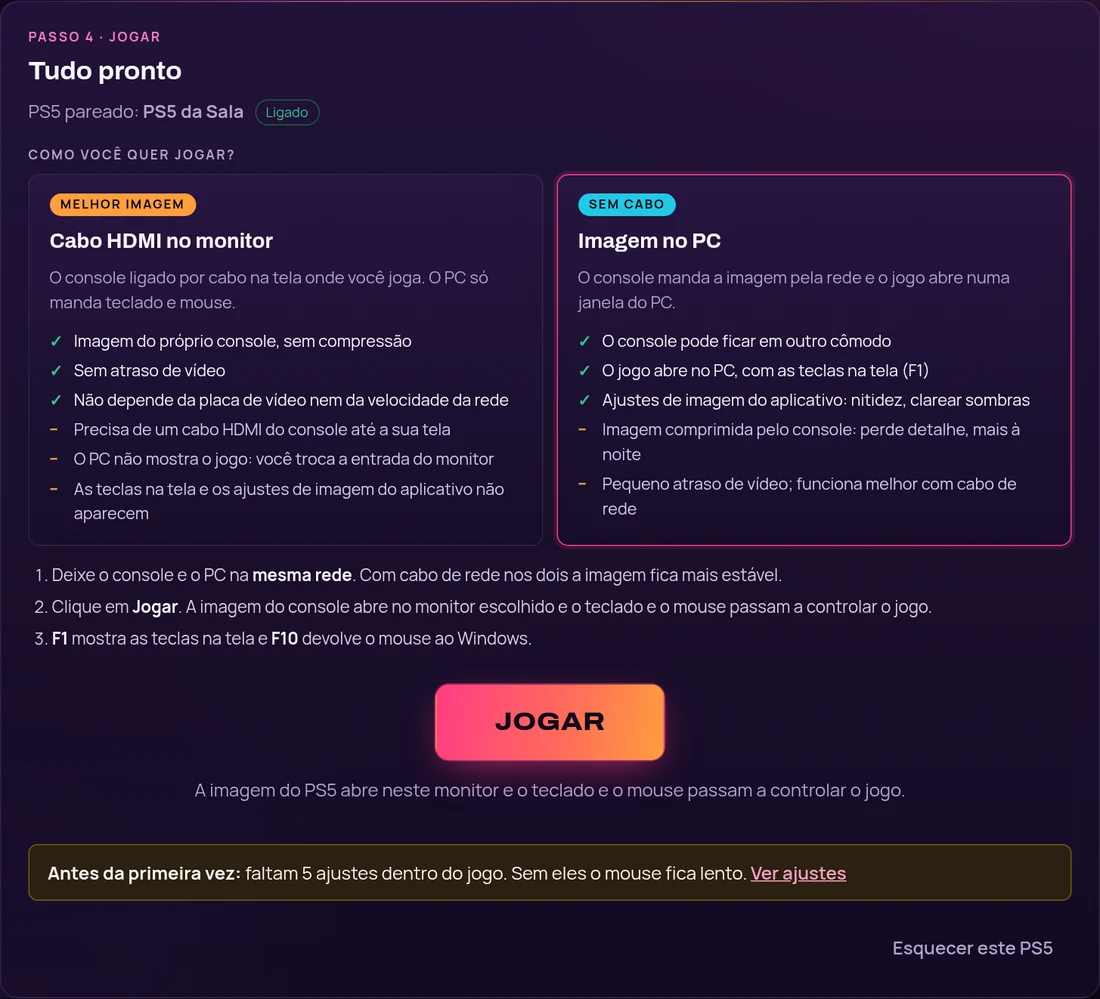
Choose how to play and click Play
HDMI cable to the monitor: the console's own picture, no delay. Picture on the PC: no cable, in a PC window. Click Play and your keyboard and mouse control the game.
5. In-game settings
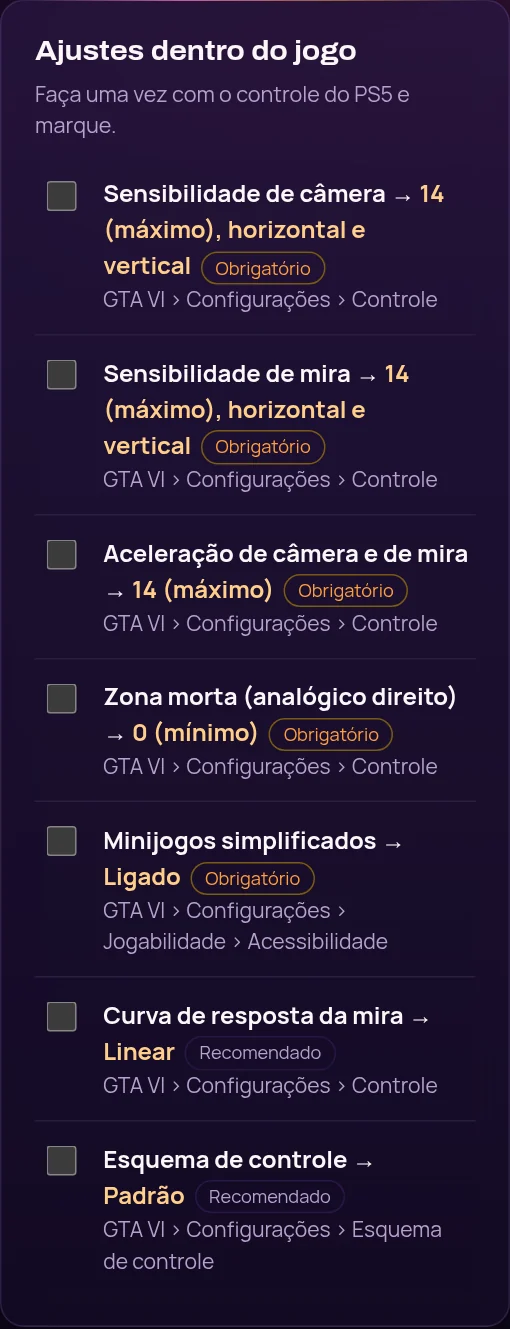
Do this once, with the controller, in the game's menu. Without them the mouse feels slow. GTA VI example (the app shows the list for your game in the Setup tab):
- 11On the console
Sensitivity up, deadzone down
Look and aim sensitivity at 14 (max), acceleration at 14 and right stick deadzone at 0. Turn on Simplified minigames in Gameplay › Accessibility.
App keys while playing
- F10
- Turns control on and off (gives the mouse back to Windows)
- F1
- Hold to see every key
- End
- Shows or hides the corner controller
- F6 to F9
- Correct the situation: on foot, car, menu, flying
- 0
- GTA VI cheat menu (with Enhanced picture)
If something doesn't work
The app doesn't find the console
Check that the console and PC are on the same router, that Remote Play (PS5) or remote features (Xbox) are on, and that you clicked Allow on the Firewall prompt. You can also type the console's IP address.
The mouse feels slow or heavy
Do the in-game settings from step 5. The app's sensitivity is in Setup › Mouse.
The picture stutters or looks blurry
Use a network cable on the console or PC. In Preferences › Streaming, lower the resolution or bitrate. With the HDMI cable to the monitor, the picture does not depend on the network.
I need help
Open the live chat on this site or a ticket in Support. In the app, the Diagnostics link in the footer helps the team understand the problem.
All set?
Watch the setup video or talk to us on the chat.